omaroll

Omaroll logo

Omaroll

Your media, in one beautiful library.

A fast, beautiful image, video, and PDF viewer that turns your media folders into a library. Open one file and move through the rest of its folder, open a selection of files in order, or browse photos, videos, documents, downloads, albums, tags, and custom folders together.

Omaroll is an independent community project. It is not an official Omarchy application.

The library over the Ethereal theme, with the wallpaper showing through the chrome

Watch the 25 second demo


Why

Omarchy ships an unusually good capture stack and then drops the output into a folder. omarchy-capture-screenshot, omarchy-capture-screenrecording, omacut, tensaku, pinta, tesseract, omarchy-transcode are all there and all good. What is missing is the two steps after capture: finding the thing again, and doing the obvious next thing with it.

$ ls ~/Videos
screenrecording-2026-08-30_20-10-45.mp4
screenrecording-2026-08-30_20-10-59.mp4
screenrecording-2026-08-30_20-11-49.mp4
...

Omaroll is the wire between the tools that make captures and the tools that act on them.

What it does

Actions

Every handler below already ships with Omarchy.

Capture Action Handler
Recording Trim (default) omacut
Recording Convert · resize omarchy-transcode
Recording Play mpv
Recording Save current frame ffmpeg, from the viewer position
Screenshot Make it postable (default) native
Screenshot Annotate $OMARCHY_SCREENSHOT_EDITOR, default tensaku-edit
Screenshot Extract and select text tesseract
Image Convert · resize omarchy-transcode
Image Edit · View pinta · imv
Image Set as background omarchy-theme-bg-set
Image Copy detected QR content zbarimg
PDF Open document (default) sushi
Any Rename in place native, extension preserved
Image or video Copy image omarchy-clipboard-paste-file
Any Send with LocalSend omarchy-menu-share
Any Send to a machine omarchy-tailscale-send, after picking the machine
Any Show in files nautilus
Any Move to Trash XDG trash, never unlink

The image and video defaults, including whether slideshows include videos, can be changed in Settings.

An action whose program is missing is shown greyed with the package to install, rather than hidden. The medium decides the list, not the folder: a downloaded clip gets the recording actions and a downloaded photo gets the image actions.

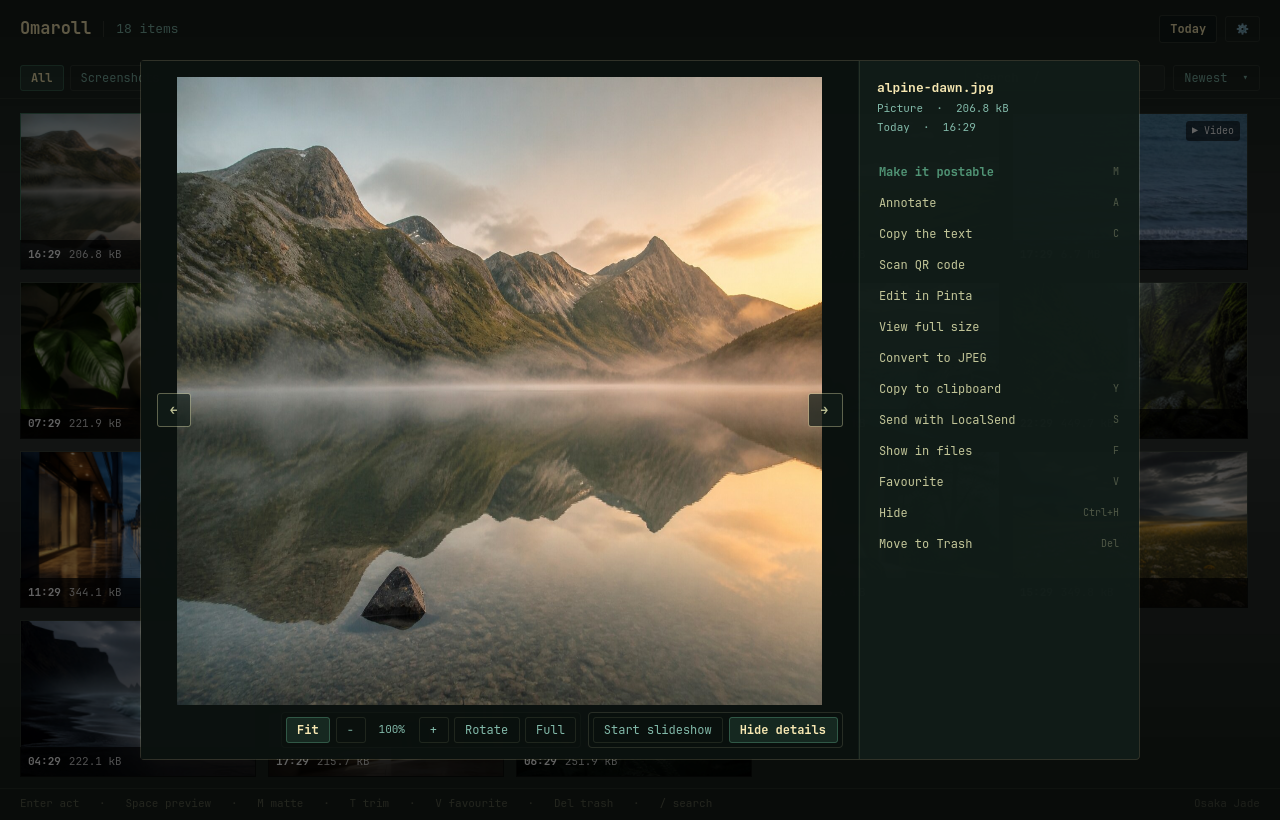
Every action for one capture

Mattes

Six finished backgrounds, from the image's own colour

Adaptive and Deep are gradients built from the capture’s dominant hue, Aurora is a soft mesh, Slate and Paper are neutrals, Pop is the complementary hue, and None is the raw capture so the picker is never a tax. Deterministic per file: the same screenshot always offers the same six.

The original is never touched. The composite is written as a new file beside it and put on your clipboard.

Keyboard

Key Does
arrows · hjkl Move
Enter · right click Preview with every action for that capture
Space on the grid or a still/PDF preview Your default action for that kind, initially trim, matte, or open document
Space in a video or animated-image preview Play · pause
in a preview Previous · next file in the same folder
J L in a video preview Seek backward · forward five seconds
M · or 9 0 in a video preview Mute · volume down/up
[ ] · Backspace in a video preview Change speed · reset speed
Home End in a video preview Start · end
+ - · 0 · 1 · R in an image preview Zoom · fit · actual size · rotate
Shift+H Shift+V in an image preview Flip horizontally · vertically
F11 in a preview Enter · leave fullscreen
F5 in a preview Start · pause slideshow
I in a preview Show · hide file info and actions
M Make it postable
T · P Trim · Play a recording
G in a video preview Save the current frame beside the recording
A · C Annotate · Extract text
E Convert or resize, including the selection
N Rename, preserving the extension
Y · S · F Clipboard · Send · Show in files
V · Ctrl+H Favourite · Hide
1-8 · Tab Shift+Tab Jump to a section · next · previous section
Alt+1-Alt+5 · Alt+0 Rate · clear rating, in the grid or the viewer
Page Up Page Down in a PDF preview Previous · next page
X · Ctrl+A Select · Select all
with a selection V Ctrl+H Y S Del act on every checked file
Ctrl + wheel · Ctrl + - 0 Bigger or smaller tiles · reset
drag Drop the file, or the whole selection, into another app
Del Move to Trash, with confirm
/ · R Search filenames and picture text · Rescan
Esc Clear selection, then close

The same letters work inside the preview. “Open with Omaroll” on a picture or video from any file manager opens it straight into its actions, with previous and next controls for the other media in that folder. A folder handed to omaroll opens as a recursive folder view for that session.

Formats

Images: PNG, JPEG, WebP, animated GIF and WebP, BMP, AVIF, HEIC/HEIF, TIFF, SVG/SVGZ, ICO, JXL, JPEG 2000, QOI, PSD, DDS, EXR, and TGA. TGA support depends on the installed Qt plugin; uncompressed Truevision 2.0 files work, while older files without the footer may not.

Videos: MP4, M4V, MKV, WebM, MOV, AVI, MPEG, WMV, FLV, Ogg video, 3GP and MTS/M2TS. Playback uses Qt’s FFmpeg backend. An optional action can still hand the file to mpv.

Documents: PDF. Thumbnails, previews, and page counts use Poppler locally.

Install

Requires Omarchy or Arch with Qt 6.8+ and Poppler.

curl -fLO https://github.com/btsouth/omaroll/releases/download/v1.6.0/omaroll-1.6.0-1-x86_64.pkg.tar.zst \
     -fLO https://github.com/btsouth/omaroll/releases/download/v1.6.0/SHA256SUMS
sha256sum -c --ignore-missing SHA256SUMS
sudo pacman -U ./omaroll-1.6.0-1-x86_64.pkg.tar.zst

Run the same commands for a newer release to update. The package is prepared for the Omarchy repository so installation and updates can move to normal pacman updates after inclusion.

If you prefer a browser, download the package and SHA256SUMS from the latest release, put them in the same folder, then run the last two commands above from that folder.

To build from source instead:

git clone https://github.com/btsouth/omaroll
cd omaroll
cmake -S . -B build -G Ninja -DCMAKE_BUILD_TYPE=Release
cmake --build build
sudo cmake --install build

Use it as a viewer

Open any supported image, video, PDF, or folder from a terminal:

omaroll photo.jpg
omaroll ~/Pictures

You can also choose Omaroll from a file manager’s Open With menu and set it as the default for the media types you want. A single file opens directly in the viewer, with previous and next navigation through other media in that folder.

Several files can be opened together, in the order given:

omaroll first.jpg ~/Pictures/second.png third.webp
omaroll -- ./-unusual-name.png

Multiple files stay in the supplied order across folders, including when an existing window receives them. Explicitly selected hidden files can be opened without scanning every surrounding folder. The viewer shows your position in the selection and skips removed files.

Transparency

Omaroll paints its own translucent chrome from your theme and draws every thumbnail fully opaque on top. Omarchy dims all windows slightly by default, which would wash out the pictures, so Omaroll opts out the same way mpv, imv and Pinta do. Copy /usr/share/omaroll/hypr/omaroll.lua (or packaging/hypr/omaroll.lua from the source tree) into ~/.config/hypr/ and require it, or add to your Hyprland config:

o.window("^(io\\.github\\.tsouth89\\.omaroll)$", { tag = "-default-opacity" })
o.window("^(io\\.github\\.tsouth89\\.omaroll)$", { opacity = "1 1" })

Try it without your own files

omaroll --demo

Builds a deterministic fictional library in a temp directory and browses that instead. Nothing personal appears on screen, which is also how every screenshot in this repository is made.

omaroll --render shot.png --render-view matte

Renders a view to a PNG and exits. Views include grid, detail, video, slideshow, matte, export, rename, duplicates, and settings. It grabs the scene graph rather than the screen, so an overlapping window cannot spoil the shot.

Design notes

Development

cmake -S . -B build/release -G Ninja -DCMAKE_BUILD_TYPE=Release
cmake --build build/release
bash tests/run-isolated.sh build/release

See current project status for released, merged and draft work. See validation for the OpenGL media checks and the roadmap for upcoming work.

For a focused release check on an Omarchy desktop:

  1. Launch omaroll --demo and verify the grid, folder filters, search, sort, selection, and Settings at both tiled and floating window sizes.
  2. Open a real image from the file manager. Verify previous and next stay in its folder, then test fit, actual size, deep zoom, pan, rotate, both flips, fullscreen, animation pause, and F5 slideshow.
  3. Open a real video. Verify play and pause, sound, volume, seeking, playback speed, audio tracks, subtitles, technical details, Save current frame, double-click fullscreen, and the transition to the next item in a slideshow.
  4. Create an album, rename and move one member inside a watched folder, and verify it remains in the album. Move it outside the library and verify it is shown as unavailable instead of being matched to another file.
  5. Put an exact copy of a disposable image in another watched folder. Open Browse, choose Exact duplicates, keep one selected copy, and verify only the other byte-for-byte copies move to Trash after confirmation.
  6. Resize or recompress a disposable image, open Similar pictures, and verify the pair is grouped without either file being modified.
  7. Add a tag and saved view, restart Omaroll, and verify both persist. Rename a tagged file inside Omaroll and verify its tag follows it.
  8. Open a multipage PDF from the file manager and verify thumbnails, page navigation, details, rename, organize, send, and Trash actions.
  9. Switch Omarchy themes while Omaroll is open and confirm the chrome updates without changing the media colors.
  10. Move a disposable file to Trash and restore it from the desktop Trash.

License

MIT. See LICENSE.